TG
Titus Githae •
Awesome! Well explained and done nicely
Need help placing an order? You can contact us directly on WhatsApp via! +254 759 857 032
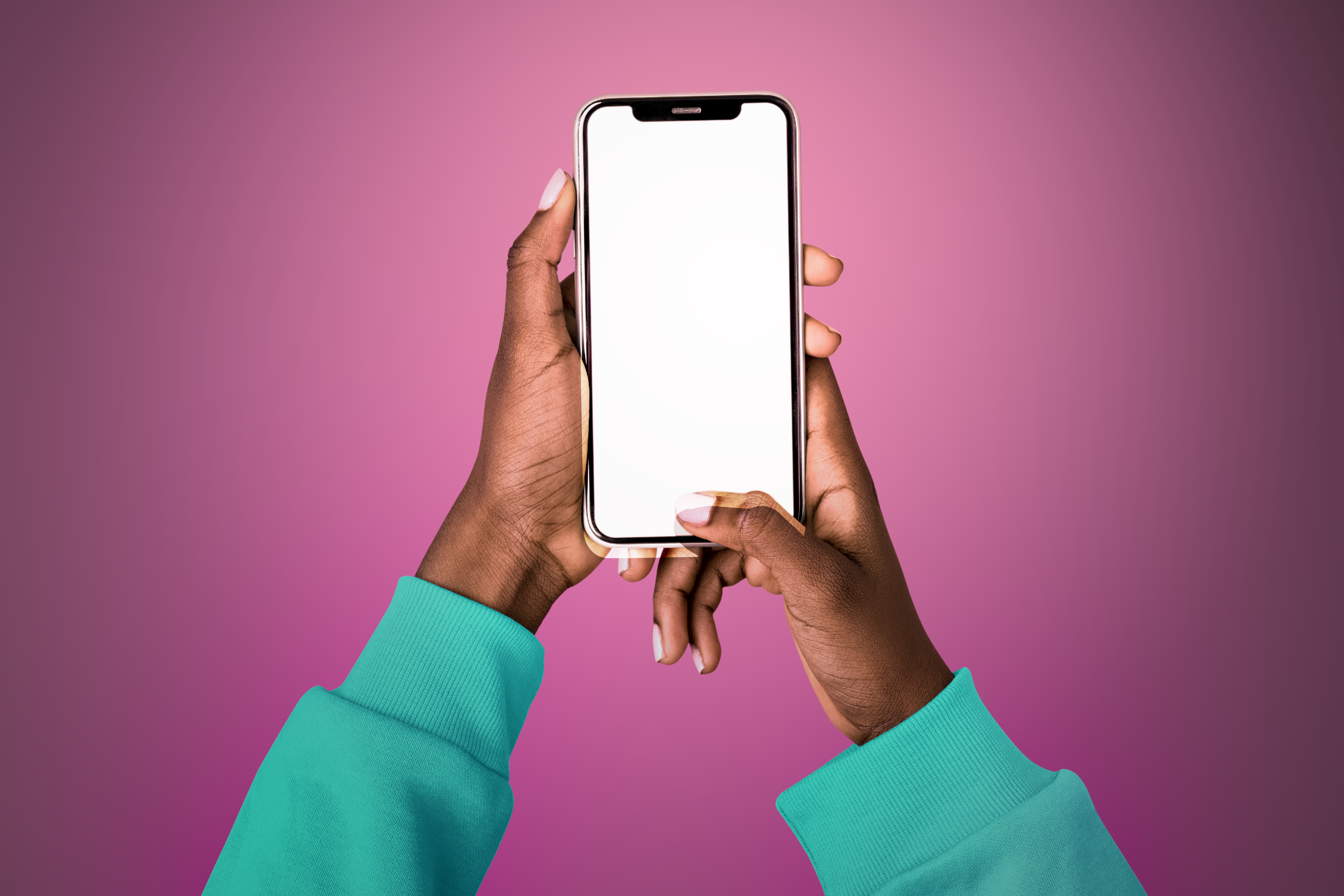
Getting a new phone doesn't mean you have to leave your WhatsApp chats behind. You can transfer your messages, photos, videos and account information to your new device, provided you prepare your old phone properly.
Whether you're moving from Android to Android, iPhone to iPhone, Android to iPhone or iPhone to Android, the process is straightforward.
Before switching phones, create a fresh WhatsApp backup.
Open WhatsApp → Settings → Chats → Chat Backup and select Back Up.
For Android, your backup can be stored through your Google Account. On iPhone, WhatsApp uses iCloud for backups.
Make sure the backup finishes before moving to your new phone.
For the easiest transfer, use the same phone number that is linked to your WhatsApp account.
If you've also changed your number, use WhatsApp's Change Number feature on your old phone before transferring your account.
If you're moving from one Android phone to another:
Keep both phones charged and connected during the process.
For iPhone-to-iPhone transfers:
Make sure you're signed into the appropriate Apple Account and that your WhatsApp backup is available.
WhatsApp supports transferring chats from Android to iPhone using Apple's Move to iOS process.
During the setup of your new iPhone, follow the Move to iOS instructions and select WhatsApp when prompted.
After completing the transfer, install WhatsApp on the iPhone and verify your number.
WhatsApp also supports transferring chats from iPhone to compatible Android devices.
The exact process can vary depending on the Android phone, so follow the transfer instructions shown during the phone's setup.
You may need a compatible cable or the transfer tools provided by the phone manufacturer.
This is an important step.
Don't reset or sell your old phone immediately.
First confirm that your WhatsApp chats, photos and other important information have successfully appeared on the new phone.
Once everything is confirmed, you can safely prepare the old phone for its next user.
If your backup or direct transfer includes media, your photos and videos can also appear on your new phone.
However, large backups can take time and require a stable internet connection, so be patient if the process isn't instant.
Make sure you're using the same Google Account or Apple Account associated with the backup.
Check that your SIM has network coverage and can receive SMS or calls.
Check whether you created a recent backup before switching phones.
Keep both devices charged and connected. Large WhatsApp accounts containing many videos and photos can take longer to transfer.
Before switching completely to your new phone:
1 people joined the conversation
Awesome! Well explained and done nicely
Share your thoughts with the community.
Dont Miss Out On the Latest Trending Deals
No fake products with money back guarantee
Instant returns on unsatisfactory products upon delivery
Same day delivery promise within Nairobi,
Mombasa, Nakuru, Kisumu
Selected pickup points for convenience
Pay with debit card, M-PESA or credit card
Compare products for easy purchase
Get digital assistance in your purchase